There are two types of Skills Assessment forms.
Both of these forms are created through the Administer Talent Documents screen.
On the System Admin Console, go to Talent > Administer Competencies.
The following screen will appear:
To create a new Skills Assessment form, click the New button. The following screen will appear:
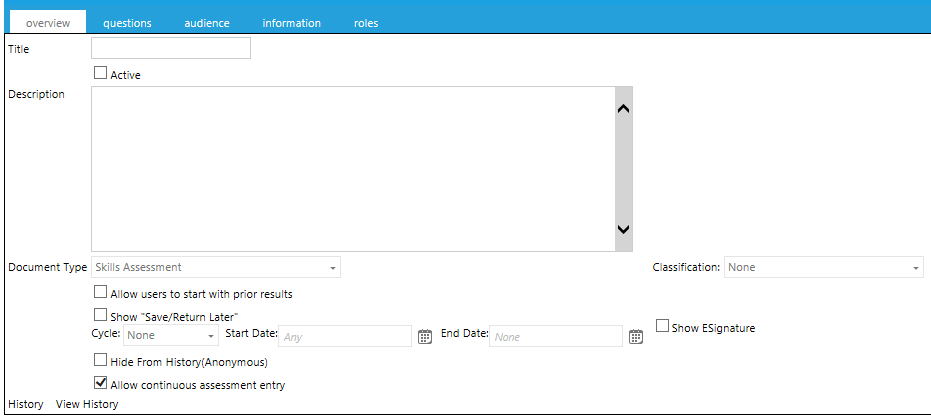
On the Overview tab, type a Title in the text box. This is the title that end-users will see when they complete the feedback form.
Click the Active check box to allow this feedback form to be visible to users.
All Talent Documents are automatically pushed to users who are in the audience. The document must be active in order for the document to be pushed to its audience.
Type a Description in the text box.
Click the Document Type drop-down arrow and select either Skills Assessment or Skills Assessment – By Supervisor.

If desired, check the Allow Users to start with prior results checkbox to allow users to see the information entered the previous time that this skills assessment was completed for the same user.
If necessary, select a Classification type for the competency. Classification types will vary since they are customized for each system.
The following options are available:
| Options | Description |
| Show Save/Return Later | Check this box to show the “Save/Return Later” button on the feedback form. This button allows an assessor to complete part of the feedback form, then to save and finish it at a later time. |
| Cycle |
If desired, select the Performance Cycle that this feedback form should be associated. Setting a Performance Cycle will allow the document to be completed once per performance cycle when the Allow Continuous Entry checkbox is unchecked. |
| Date Range |
If desired, a date range can be entered. When a date range is used, the assessment will only be accessible during this time, as shown below.
|
| Show E-Signature | Check this box to force the assessor to enter their electronic signature before the feedback form can be submitted |
| Hide from history (anonymous) | When this box is checked, the feedback form will not appear on the user’s history |
| Allow Continuous Entry Assessment |
When this box is checked (the default), a user can complete it multiple times on an ongoing basis. A copy of each completion will be accessible through the History section. When this box is unchecked, the assessment can only be completed once per performance cycle (assuming a performance cycle has been set). |
Click the Questions tab and right-click on the folder to add a competency level.
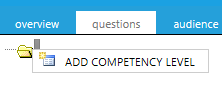
After you click Add Competency Level, the following screen appears:
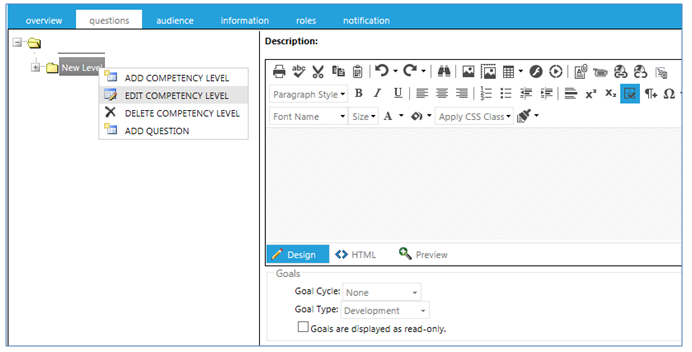
Right-click on the New Level folder and select Edit Competency Level to change the text. This may be visible to end-users based on your system’s configuration.
Enter any topic information and explanatory text that the end-user may need in the Description field.
If you would like for the user’s goals to be displayed on the feedback form, select the appropriate goal cycle and goal type that should be displayed. When a goal cycle is selected, the user’s goals will be visible. If the goal cycle is left at None, then the goals will not be shown. Goals are displayed as a read-only checkbox. By default, users will be able to edit goals from the feedback form. Check this box to make the goals "read-only."
Right-click on a level name to bring up options in a pop-up menu:
| Options | Description |
| Add Competency Level | Adds another folder level under the existing level |
| Edit Competency Level | Allows you to edit the name of the level |
| Delete Competency Level | Deletes the folder |
| Add Question | Adds a new question to the feedback form. When you click on Add Question, the screen below is displayed. |
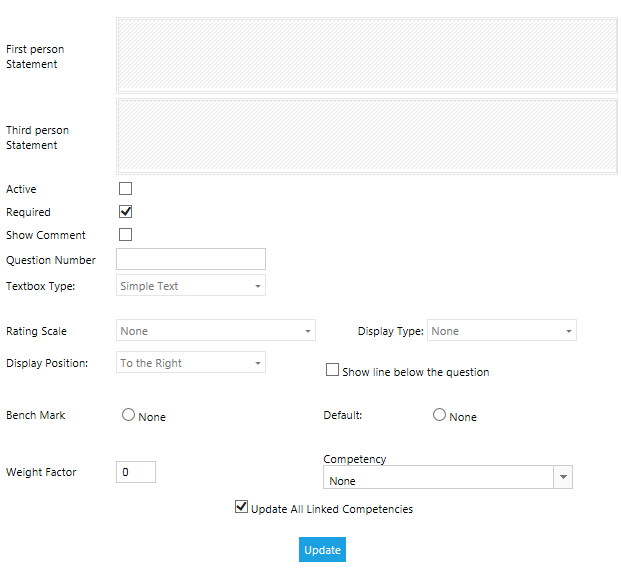
Type the question the user/supervisor will see in the First person Statement text box.
The Third person statement text box can be left blank since the Skills Assessment will only be completed by one user.
Check the Active text box to make this question visible to the user.
Check the Required check box if you wish to make this question required of every user who completes this feedback form.
Check Show Comment to allow the user to enter their own text in answer to the question.
Enter a Question Number.
Select which type of Textbox should be displayed. Options are:
Simple Text:

Rich Text:

Select a Rating Scale to apply to the question, if desired.
Rating Scales are customizable and may appear different in your system. See How to create Talent Document Rating Scales for instructions on how to create Rating Scales.
Selecting a Rating Scale will refresh the screen to show the options for each scale. For example:

For the Display Type, select how the rating scale options should be displayed. Options are:
Select the Display Position of the rating scale options. Options are To the Right of the question or Below the question.
If you would like to have a line on the screen to clearly separate the questions, check the Show Line below the question box.
When the Show only on Final Step box is checked, that question will only be displayed to the assessor who is completing the final step of the assessment process.
Bench Mark allows you to set a bench mark and a default for that question. When a competency is selected, the bench mark can be used to determine what percentage of competency has been achieved. This information can then be used by managers to see who on their team has various strengths and weaknesses.
The bench mark results can be viewed on select reports and on the Competency Summary widget, which is typically available to managers.
Weight Factor gives a level of importance to the question and is used for reporting purposes only.
Competency allows you to select from a drop-down list of competencies to associate with this question. Use the Manage Competencies screen to enter competencies into your system. If behaviors have been created with the competencies, they will be shown in the drop-down in the format of Competency/ Behavior.
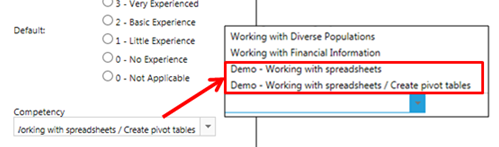
Update Linked Competencies is checked by default. If this question has been copied to another talent document, updating this question and any related options (display, etc.) will update all of the talent documents in which this question is used. For example, if a different rating scale or requirement option is selected, the new selections will be reflected in previously created documents that used this same question.
Uncheck this box if this is a copied question and you do not want the question changes to be reflected in other talent documents using the same question.
Click the Update button.
Repeat the steps to add more questions to the feedback form.
If you want to create a new section for the feedback form, go back to the initial (blank) folder and right-click to Add Competency Level.

You may click and drag any question to a new position in the list or to another folder entirely.
Click the Save button.
To delete a question, right-click on the title in the left-side panel and click Delete Question.
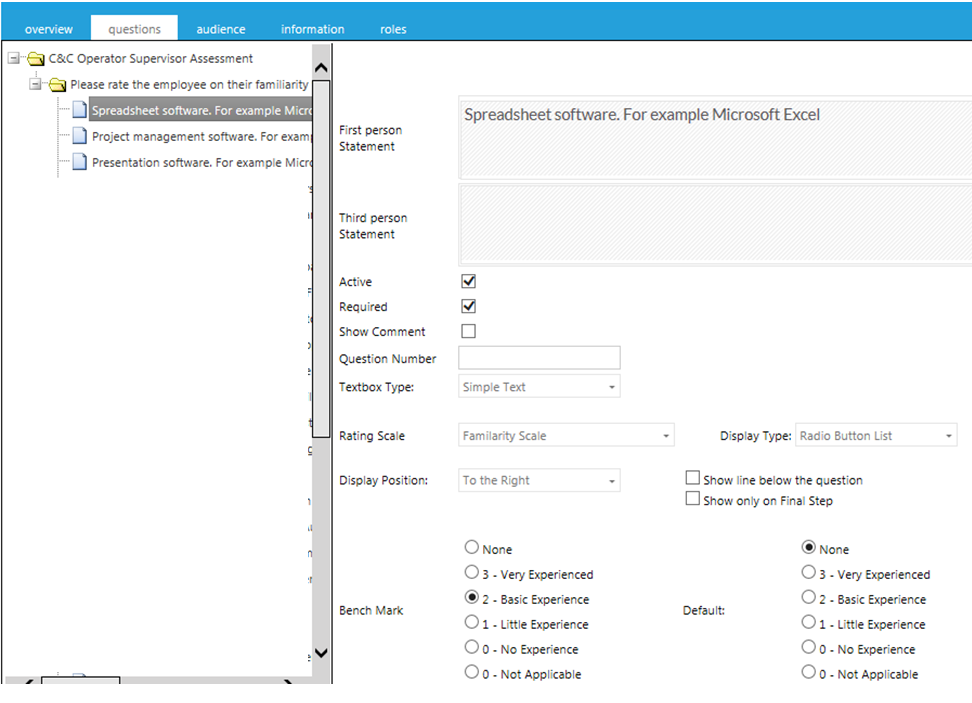
Pictured below is a sample Skills Assessment – Supervisor type assessment. The Supervisor will fill in the appropriate fields and then submit the assessment.

Shown below is the set up for the first question that appears on this Skills Assessment.
Click the Audience tab to map the feedback form to a target audience.
There is no way to “enroll” a user into a talent document. The feedback form is automatically placed on the Talent Documents section for everyone in the audience.
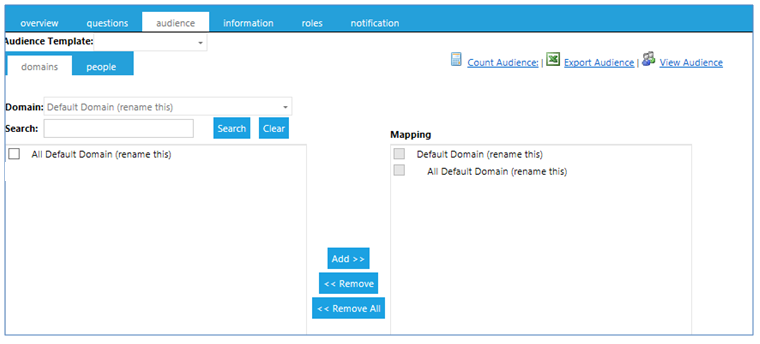
Map the audience. The Domains tab and/or the People tab can be used for audience mapping.
Use the optional Information tab to create the instructional text that users will read at the beginning of an feedback form.
Click the Information tab and use the Rich Text Editing tools to format the text.
Click the Save button.
Pictured below is an example of where the informational text will appear on the Skills Assessment form.

The Roles tab can be used to limit who is allowed to see a completed feedback form.
If a role is selected, then only users with that role will be able to see the completed feedback form on the Talent Documents history section. This means that if a user does not have the selected role, then their completed feedback form will not be visible to them on the history portion of their Talent Documents.
If no role is selected, then the completed feedback form will be visible to both the user and their manager.
The top toolbar has the following options.

| Options | Description |
| Save | Click this to save your changes as you create/edit a talent document. |
| Save and Close | Click this to save your changes and close the document. This will return you to the Administer Talent Documents overview screen. |
| Copy Questions | Click Copy Questions and the pop up box below will appear. |

Click the Talent Documents down arrow and select another Talent Document from the list.
The questions from the document you selected will appear in the left-side panel. The questions from the document you are currently working on will remain in the right-side panel.
On the right column, select the appropriate destination folder within your current document.
Check the questions on the left column that you want to copy, then click the Copy Selected Questions button in the top toolbar.

A pop-up box will ask if you want to copy any additional questions.

Click OK to be taken back to the Copy box, where you can select additional talent documents from which to copy questions.
When you have copied all of the desired questions, click Cancel. This will close the Copy pop-up box.
You can then verify that all of the questions have been copied into the appropriate folder on the Questions tab.
You can make any desired changes to the copied questions, then click Update at the bottom of the Question screen Remember, if you make changes to this question and the Update All Linked Competencies box is checked, any changes you made will be reflected in any other document that uses this same question.

Specifically, the following options are available:
| Options | Description |
| Cancel | Click this to exit the talent document without saving your changes. |
| Export to Excel | Use this option to export the Talent Document into an Excel file. |
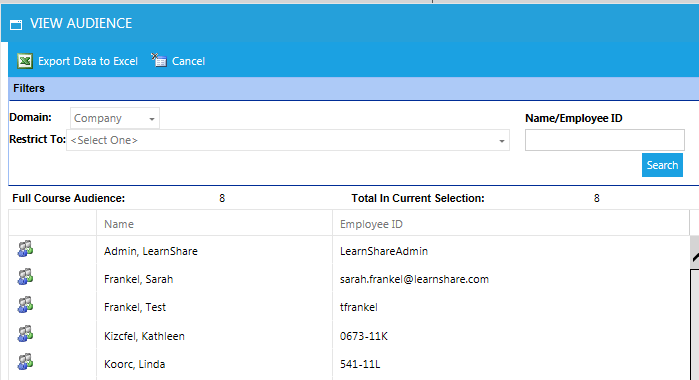
| View Audience | Use this to see a list of all of the users in the audience for the talent document. Click Search to see a list of everyone in the audience. Use the filter boxes to see a filtered audience list. Results can be exported to Excel. |
The screen below shows the output.